
Imagine stepping into a rickshaw or bus and knowing that with a single scan of your phone, the police can track your every move and reach you within minutes if danger strikes. The CM Punjab QR Panic Button Initiative makes this scenario a reality across Pakistan’s most populous province. This digital safety system, deployed by the Punjab Safe Cities Authority, turns ordinary public transport vehicles and public spaces into connected emergency response points.
Key Takeaways
- Instant Police Connection: Pressing the panic button sends your live GPS coordinates and vehicle details to the Safe City Control Room in under two seconds, with police dispatched immediately.
- Zero Cost to Anyone: Transport operators pay nothing to obtain and display the QR code. Passengers pay nothing to scan or use any emergency feature.
- Vehicle Verification First: Before your journey starts, scanning the QR code reveals the driver’s name, photo, license number, and vehicle registration status, letting you decide whether to board.
- 12 Safety Features in One: The system integrates voice calling, video calls, live chat, trip sharing, family alerts, and automated record protection into a single QR scan.
- Automatic Deactivation on Sale: When a vehicle changes ownership, the existing QR code stops working immediately, preventing misuse by previous owners.
- Wider Expansion: The government recently announced the installation of an additional 1,500 panic buttons across police stations and prominent public spaces as part of the expanding Safe City network.
- Read More: Budget 2026-27: Major Expenditures, Tax Relief, & Revenue Target
- Read More: CM Punjab Rental E-Bike Service Scheme (For Lahore Region)
- Read More: CM Punjab Maryam Nawaz She Threads Program (PKR 15K/Month)
- Read More: Top 5 Free Liver Transplant Hospitals In Lahore
CM Punjab QR Panic Button Initiative: How It Works, Where It Is Installed
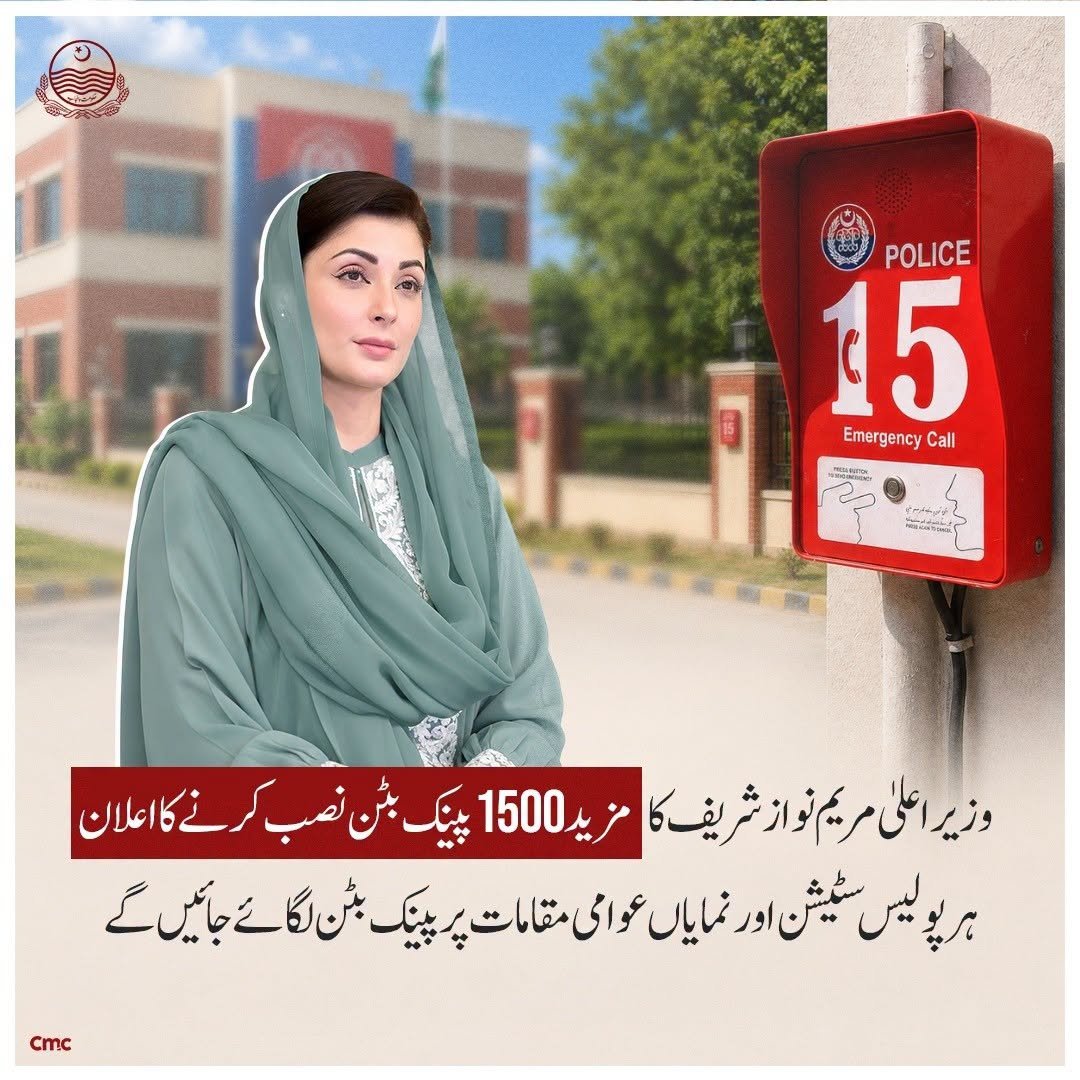
Table of Contents
Understanding the CM Punjab QR Panic Button Initiative
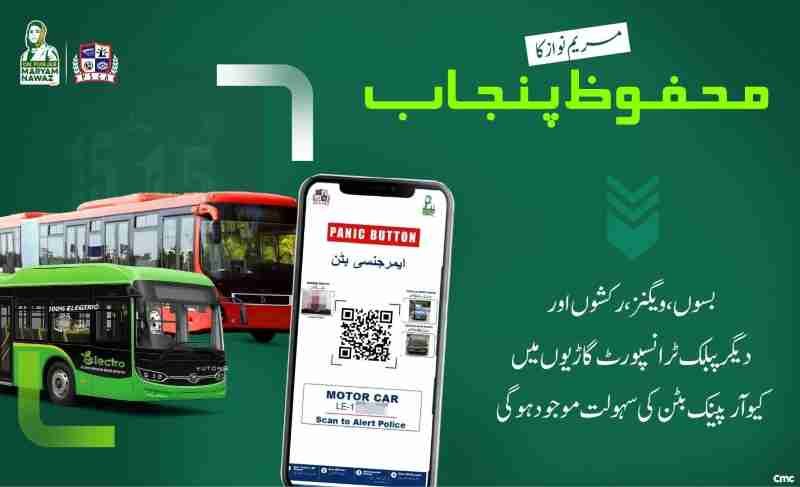
The CM Punjab QR Panic Button Initiative is a province-wide digital safety network that enables passengers and citizens to summon emergency assistance instantly by scanning a QR code displayed inside public transport vehicles or at fixed public locations. The system links directly to the Emergency 15 helpline and the Safe City command center, providing voice, video, and text communication options.
What Makes This Initiative Different from Previous Safety Efforts?
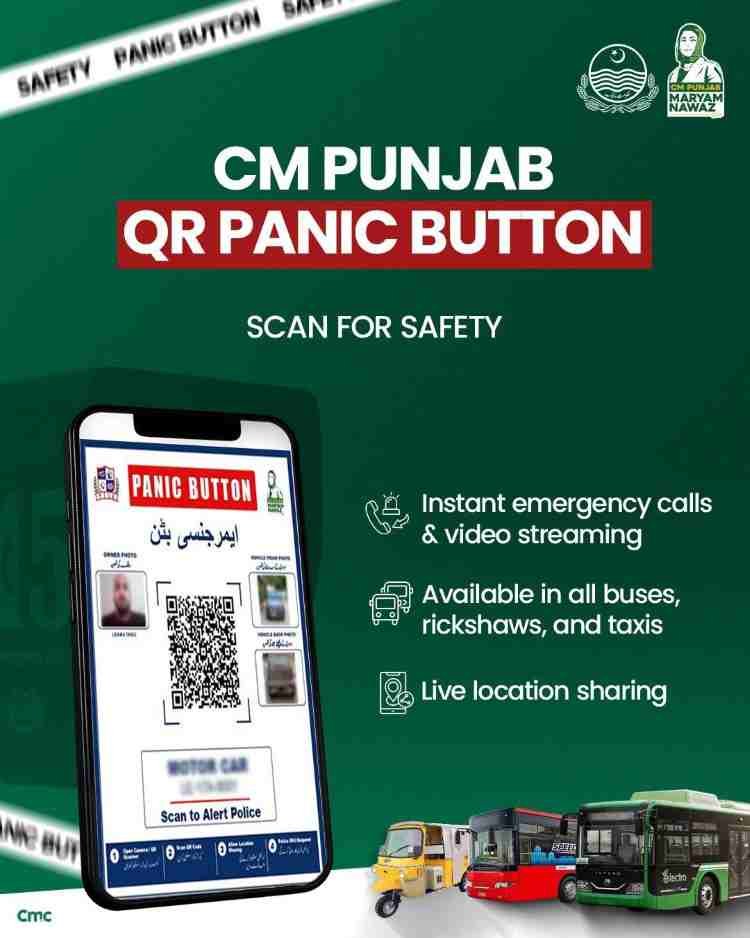
Previous safety measures relied on passengers remembering emergency numbers, describing their location accurately under stress, and hoping that dispatchers could find them. This system eliminates those variables completely. When you scan the QR code, the system automatically captures your precise location, the vehicle’s registration details, and the driver’s credentials before you even press the emergency button.
The Problem This System Solves
Public transport passengers, especially women and students, face three specific safety gaps:
- No way to verify if a driver is legitimate before boarding
- No automatic way to share trip details with family
- No instant emergency alert mechanism from inside a moving vehicle
The QR Panic Button closes all three gaps simultaneously. A single scan handles verification, family sharing, and emergency readiness.
Who Governs and Operates the System?
The Punjab Safe Cities Authority holds complete responsibility for the QR Panic Button ecosystem. This includes:
- Technology development and maintenance
- Control room operations and staffing
- Police dispatch coordination
- Public awareness campaigns
- Compliance monitoring for transport operators
The Authority operates round-the-clock control centers that receive, verify, and respond to every panic button activation.
Read More: Top 5 Free Kidney Transplant Hospitals In Lahore
How the QR Panic Button Works: A Step-by-Step Breakdown
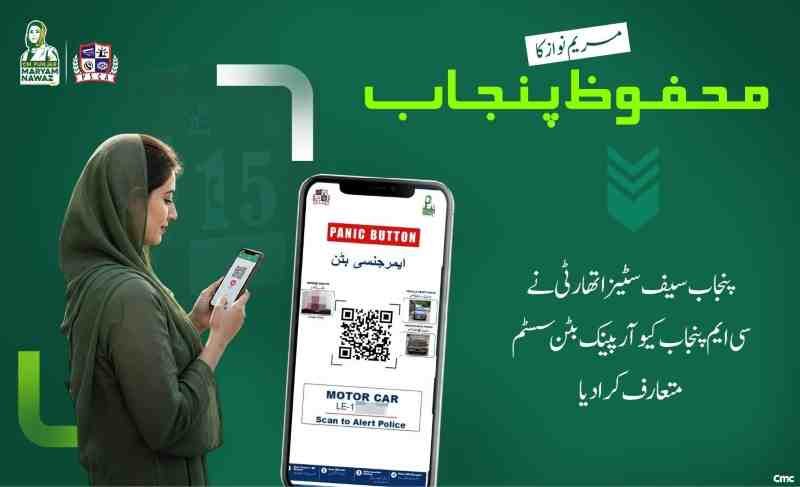
The system operates in three distinct phases, each taking only a few seconds to complete. Understanding these phases helps passengers use the system confidently and effectively.
Phase One: Initial Scan and Verification
When you enter any participating vehicle or approach a fixed panic button location, you point your smartphone camera at the QR code. The phone recognizes the code and opens a secure connection to the Punjab Safe Cities Authority database. Within three seconds, your screen displays:
- The vehicle’s registration number
- The owner’s name as recorded in transport department records
- The registered driver’s name and photograph
- The driver’s license number and validity status
- The vehicle’s fitness certificate expiration date
This verification happens before the journey begins, giving you the option to exit the vehicle if the displayed information does not match the actual driver or if the registration appears invalid.
What Information Appears After Scanning?
The verification screen serves as a digital identity card for the vehicle and driver. You see:
Vehicle Information: Registration number, make and model, year of manufacture, and fitness certificate status with expiry date.
Driver Information: Full name, license number, photograph uploaded during registration, and contact number on file.
Owner Information: Name of the registered owner, which may differ from the driver in commercial transport situations.
QR Code Status: Activation date and validity indicator showing whether the code is currently active in the system.
Phase Two: Trip Sharing with Family
After verification, the screen presents an optional trip sharing feature. You decide whether to activate it. If you choose to share, the system generates a secure tracking link containing your real-time location, the vehicle’s details, your selected destination, and an estimated arrival time.
How to Share Your Trip Safely
- Tap the “Share Trip” button on the verification screen
- Select contacts from your pre-saved list or enter a phone number manually
- Choose how long the sharing should remain active (default is until destination arrival)
- Confirm sharing by entering a one-time password sent to your phone
Family members receive a text message or app notification containing a map link. They can open this link in any browser without installing any app. The map updates your position every few seconds throughout the journey.
When Does Trip Sharing Automatically Stop?
The system ends location sharing automatically under three conditions:
- You manually tap the “Stop Sharing” button
- Your phone detects arrival at the destination you entered
- Four hours have passed since sharing began (safety timeout)
No historical trip data remains accessible after sharing ends. Each new journey requires fresh consent.
Phase Three: Emergency Activation and Response
The emergency button remains visible on your screen throughout the journey, even if you exit the verification screen. Tapping this button initiates the emergency response sequence.
What Happens the Moment You Press the Button?
The button press triggers three simultaneous actions:
Action One – Data Transmission: Your smartphone’s GPS captures your exact latitude and longitude. This data, along with the vehicle’s QR identification, driver details, and your phone number, transmits to the Safe City Control Room. Transmission completes in under two seconds.
Action Two – Communication Pathways Open: Your screen displays three contact options:
- Voice call to Emergency 15 operator
- Live text chat (useful when speaking is unsafe)
- Video call that shares your camera feed with the operator
Action Three – Control Room Alert: The operator receives your case with high-priority visual indicators. Your location appears on their digital map. Vehicle credentials display automatically. Nearby Safe City surveillance cameras are queued for immediate viewing.
How Does the Operator Assess Your Situation?
Operators follow a structured assessment protocol:
- Silent listening: If you cannot speak, the operator listens to ambient sounds from your environment while tracking your location.
- Text chat initiation: The operator sends a text message asking you to type a simple response like “1” for police needed or “2” for medical help.
- Video assessment: If you select video call, the operator sees your surroundings, the vehicle interior, and any threatening individuals.
- Camera verification: If you cannot communicate at all, the operator accesses nearby Safe City cameras to visually confirm the situation before dispatching police.
How Fast Is Police Dispatch After Button Press?
The total time from button press to police dispatch averages thirty to forty-five seconds in Lahore, assuming network connectivity and operator availability. Police units receive your live location on their mobile devices and navigation systems. The responding officer sees your position updating in real time as they approach.
What Happens If You Have No Internet Connection?
The system includes fallback options for limited connectivity scenarios:
- No mobile data but cellular signal exists: Your emergency request transmits as an SMS containing your location and vehicle details. The operator receives this and initiates a voice call to your number.
- No cellular signal at all: Your phone stores the emergency request and continuously attempts transmission. You see a “Waiting for network” message. Once signal returns, the request sends immediately.
- Airplane mode or phone off: No alert can be sent. The system cannot function without an active device.
Where the QR Panic Button Is Installed Across Punjab
The installation follows a phased, prioritized rollout across vehicle categories and fixed locations. Understanding where to find these codes helps you use the system proactively.
Public Transport Vehicles
Public transport represents the primary installation category because passengers spend extended time inside these vehicles with limited ability to escape dangerous situations.
Buses and Wagons
All public buses operating on high-traffic intra-city routes display QR Panic Button stickers. Locations inside the bus include:
- Back of the driver’s seat
- Above the rear door
- Near window pillars at standing passenger height
Inter-city and rural buses are currently being equipped as the rollout expands beyond major urban centers.
Auto-Rickshaws
Auto-rickshaws received priority installation because they are the most common form of short-distance public transport in Punjab cities. The initial deployment placed codes inside over 100 rickshaws operating from Liberty Chowk in Lahore. The mandate now requires every registered rickshaw to display a QR code inside the passenger cabin.
Look for the QR sticker on:
- The back of the driver’s seat
- The ceiling panel above passenger seating
- The side wall near the passenger door
Taxis and Ride-Hailing Vehicles
Traditional taxis and digital ride-hailing vehicles including Uber, Careem, and Indrive are required to display QR Panic Buttons. The City Traffic Police mandate applies to all vehicles operating through digital platforms, regardless of vehicle class or fare structure.
Installation requirements for ride-hailing vehicles include:
- QR code displayed inside the passenger cabin
- Dashboard camera installed and functioning
- GPS tracker active and transmitting to the platform
Non-compliant vehicles face fines, temporary suspension from platforms, and eventual permanent delisting.
Fixed Locations at Public Venues
Fixed QR Panic Button installations do not move. These are permanent placards attached to walls, pillars, or poles at strategic locations.
Educational Institutions
Women’s colleges and universities received first-phase installations. Thirty-nine campuses in Lahore were initially equipped. The expansion targets more than 450 women’s colleges across all Punjab districts.
Fixed locations on campuses include:
- Main entrance gates
- Hostel reception areas
- Library entrances
- Isolated walkways between buildings
- Parking areas
When you scan a fixed-location QR code on a campus, your emergency alert is immediately associated with that specific building address and room number if applicable. This is more precise than GPS tracking, which can be inaccurate inside large buildings.
Religious Sites and Imambargahs
For the first time in Pakistan’s history, QR Panic Buttons have been installed at Imambargahs across Punjab. More than 4,500 sites have been geo-tagged. Scanning the QR code at any participating Imambargah displays:
- The location’s security classification
- Administration contact details
- Nearest police station information
- Emergency exit locations within the building
The system proved particularly valuable during Muharram-ul-Haram when large crowds gather at these sites. Security personnel can monitor real-time panic button activations during processions and majalis.
Other Public Spaces
Additional fixed panic button locations include:
- Major bus terminals
- Railway stations
- Public parks and gardens
- Commercial market entrances
- Hospital waiting areas
- Government office reception zones
Each fixed location features a prominently displayed QR code placard with instructions in Urdu and English.
Using the QR Panic Button: Practical Guidance for Different Scenarios
Different situations require different approaches to using the system. Understanding these scenarios helps you respond appropriately during actual emergencies.
Scenario One: Suspicious Driver Behavior Without Immediate Danger
You scan the code and see that the driver’s photograph does not match the person driving. Or the vehicle registration appears expired. You are not in immediate physical danger, but you feel unsafe.
What to do:
- Do not press the emergency button
- Ask the driver to stop at a safe, well-lit area with people around
- Exit the vehicle
- Pay the fare for the distance traveled (do not refuse payment as this escalates conflict)
- Report the discrepancy through the Public Safety App complaint feature or by calling the traffic police helpline
Scenario Two: Immediate Danger or Harassment
A driver makes threatening statements, touches you inappropriately, or refuses to stop when you ask. You are in immediate danger.
What to do:
- Press the emergency button immediately
- Select the video call option if possible – visual evidence is powerful
- If you cannot speak, press the emergency button and then press the phone to your ear as if on a call. The operator will hear everything.
- Do not threaten the driver by saying you are calling police. This may escalate violence.
- Activate trip sharing to your family at the same time if possible
Scenario Three: Medical Emergency
A passenger collapses. Someone is having a seizure or heart attack inside the vehicle.
What to do:
- Press the emergency button
- Select voice call and clearly state “medical emergency”
- Tell the operator the symptoms you observe
- Stay on the line while the operator dispatches an ambulance to your live location
- Do not move the patient unless they are in immediate danger (fire, flooding, etc.)
Scenario Four: Accident or Vehicle Breakdown
The vehicle crashes or breaks down on a highway or isolated road. No injuries, but you are stranded.
What to do:
- Press the emergency button
- Select voice call and state “accident – no injuries” or “breakdown”
- Provide your destination and any landmarks you see
- The operator will dispatch traffic police to manage the scene and arrange alternative transport if needed
Scenario Five: You Are a Driver Needing Help
Drivers also face dangerous situations including passenger aggression, robbery attempts, or medical emergencies.
What to do:
- Press the emergency button exactly as a passenger would
- The operator treats driver-initiated alerts with the same priority
- State clearly “I am the driver” so the operator knows which person in the vehicle needs help
- The system shares the same vehicle and location data regardless of who pressed the button
Privacy, Data Protection, and Legal Framework
Many citizens worry about how their location data is handled and whether the system could be misused. These concerns are addressed through specific technical and legal protections.
What Data Does the System Collect and Store?
The system collects only the minimum data necessary for emergency response:
- Your phone number (from caller ID when you scan)
- Your GPS coordinates at the time of emergency activation
- The vehicle QR code you scanned
- Timestamp of scan and any emergency activation
- Communication records (voice, chat, video) during active emergencies
The system does NOT collect:
- Your name or CNIC unless you voluntarily register in the Public Safety App
- Your browsing history or other phone data
- Your location when you are not actively scanning a QR code or pressing the emergency button
- Contact list contents beyond the numbers you manually enter for trip sharing
How Long Is Your Data Retained?
Data retention follows a ninety-day policy:
- Active emergency data: Retained for ninety days from the date of the incident. This supports police investigations and legal proceedings.
- Non-emergency scan data: Deleted after thirty days. This includes verification-only scans where no emergency button was pressed.
- Trip sharing data: Deleted immediately after the sharing session ends. No historical access.
After ninety days without any related criminal case filing, all data is permanently purged from system databases. There is no long-term tracking of passenger movements.
Can Police Access Your Data Without Your Consent?
Police cannot access your data for routine inquiries or without cause. Access is permitted only under three circumstances:
- Active emergency: The responding officer sees your live location and vehicle data during the incident only. This access ends when the emergency is resolved.
- Criminal investigation: A court order specifically requesting your data in connection with a reported crime. The order must specify the time, date, and location of the incident.
- System audit: Authorized PSCA personnel access logs for quality assurance and system maintenance. Individual identities are anonymized in audit logs.
What Happens When a Vehicle Is Sold?
The automatic deactivation system prevents former owners or drivers from misusing outdated QR credentials. When ownership records update in the transport department database, the synchronization process flags the associated QR code for deactivation within twenty-four hours.
After deactivation:
- Anyone scanning the old code sees a “Registration Changed – Code Invalid” message
- The code cannot activate emergency services
- A new QR code must be generated by the new owner through the standard registration process
This system also protects passengers who might unknowingly board a vehicle with changed ownership. The warning message alerts them to the discrepancy before the journey begins.
Legal Obligations for Transport Operators and Rights for Passengers
Understanding the legal framework helps both operators comply and passengers assert their rights.
What Transport Operators Must Do
Any person or company operating a public transport vehicle in Punjab must:
- Register their vehicle through the official PSCA portal
- Generate a unique QR code for each vehicle
- Display the QR code prominently inside the passenger cabin
- Ensure the QR code remains legible and undamaged
- Update registration within seven days of any ownership or driver change
- Replace damaged QR stickers immediately upon notice
Failure to comply results in:
- Fines that increase with each violation
- Vehicle impoundment until compliance is demonstrated
- Suspension of transport permit after repeated violations
What Passengers Have the Right to Do
Passengers have specific legal rights regarding the QR Panic Button system:
Right to Verify: You have the right to scan the QR code before boarding or at any time during your journey. The driver cannot prevent you from scanning.
Right to Refuse Boarding: If a vehicle does not display a visible, legible QR code, you may refuse to board without penalty. The driver cannot charge you for refusing to board a non-compliant vehicle.
Right to Report: You may report any vehicle without a QR code to traffic police without providing your name. Anonymous reporting is accepted through the Public Safety App.
Right to Emergency Assistance: The driver cannot prevent you from pressing the emergency button. Attempting to block or interfere with emergency activation is a criminal offense.
What Happens to Drivers Who Tamper with QR Codes
Deliberately damaging, covering, or removing a QR Panic Button carries legal consequences:
- First offense: Fine and written warning
- Second offense: Higher fine plus vehicle impoundment for thirty days
- Third offense: Commercial driving license suspension and permanent disqualification from operating public transport
The system monitors QR code scans. A vehicle that receives zero scans over an extended period is flagged for physical inspection, regardless of whether the driver claims the code is present and visible.
Technical Specifications and Requirements
For the system to work properly, certain technical conditions must be met on both the vehicle and passenger sides.
What Smartphones Can Scan the QR Code?
Any smartphone with a functioning camera can scan the QR code. This includes:
- All Android devices running version 5.0 or newer
- All iPhones running iOS 11 or newer
- Basic feature phones with QR scanning capability (rare but supported)
No specific hardware is required beyond a camera and internet connection for full features.
What Happens If Your Phone Camera Is Damaged?
If your camera cannot scan QR codes, you have two alternatives:
- Manual code entry: Below each QR code, a numeric code is printed. You can enter this code manually into the Public Safety App to access the same vehicle verification and emergency features.
- Direct app activation: The Public Safety App includes a one-touch emergency button that works anywhere without scanning. This button contacts Emergency 15 and shares your GPS location but does not include vehicle verification details.
Does the QR Code Work at Night or in Low Light?
QR codes are printed with high-contrast black ink on white backgrounds. The stickers use reflective material that remains visible under streetlights and vehicle interior lights. If the vehicle interior is completely dark, use your phone’s camera flash or screen illumination to light the code.
Transport operators are required to keep QR stickers clean and unobstructed. A dirty or scratched sticker may fail to scan. Passengers should report damaged codes through the complaint system.
Common Myths and Misconceptions About the QR Panic Button
Several incorrect beliefs about the system have circulated. Here are the facts.
Myth One: The System Tracks Your Location Even When You Are Not Scanning
Fact: The system has no ability to track your location unless you actively scan a QR code and authorize location sharing. The Public Safety App does not run background location services unless you have an active trip share in progress. Closing the app stops all location transmission.
Myth Two: Pressing the Emergency Button Automatically Calls Your Family
Fact: The emergency button contacts only the Safe City Control Room and Emergency 15. Your family does not receive any notification unless you separately activate the trip sharing feature before pressing the emergency button. You can enable family sharing and then press emergency, but the two actions are independent.
Myth Three: The System Only Works in Lahore
Fact: The system is deployed across multiple Punjab cities including Rawalpindi, Multan, Faisalabad, Gujranwala, Sialkot, and others. Fixed panic button locations exist at 122 points in Lahore and 101 sites across other cities. Public transport vehicles operating outside Lahore also display QR codes as long as they are registered with the Punjab transport department.
Myth Four: You Need to Register an Account to Use the System
Fact: Basic verification and emergency calling work without any registration. You can scan the QR code with any camera app, view vehicle details, and press the emergency button to call Emergency 15. Registration in the Public Safety App adds features like live chat, video calling, and saved family contacts, but is not required for core functionality.
Myth Five: The QR Code Stops Working After One Scan
Fact: QR codes are permanent identifiers for each vehicle. They do not expire or change unless the vehicle ownership changes or the code is deliberately deactivated. The same code can be scanned by hundreds of passengers daily. Each scan generates a fresh verification session with no connection to previous scans.
Future Expansion and Planned Features
The QR Panic Button initiative continues to evolve. Several expansions and feature additions are planned.
Geographic Expansion
The next phases will bring QR Panic Buttons to:
- All remaining women’s colleges across Punjab (450+ total)
- Every Imambargah in the province (completion of 4,500+ sites)
- All ride-hailing vehicles regardless of platform
- Private schools and universities following consultation with administrations
- Major hospitals and healthcare facilities
- Shopping malls and commercial centers
Feature Enhancements
Planned feature additions include:
Offline Mode Enhancement: Improved fallback functionality for areas with poor network coverage, including SMS-based emergency triggers and automated retry systems.
Multi-Language Support: Expanded interface languages beyond Urdu and English to include Punjabi and Saraiki for better accessibility in rural areas.
Wearable Integration: Potential compatibility with smartwatches and fitness trackers, allowing emergency activation without pulling out a phone.
Automated Emergency Vehicle Dispatch: Direct integration with ambulance and fire services, allowing one-button activation of all emergency responders simultaneously.
Integration with Other Safety Systems
The QR Panic Button will increasingly connect with:
- Safe City camera network: Automated camera tracking of any vehicle associated with a panic alert, following the vehicle as it moves through camera coverage areas.
- Digital fitness certificate system: Unified QR code that displays both fitness and panic button information, reducing sticker clutter inside vehicles.
- National emergency number integration: Future coordination with any national emergency system to ensure seamless response across provincial boundaries.
Practical Tips for Maximum Safety
Follow these recommendations to get the most protection from the QR Panic Button system.
Before Every Journey
- Scan the QR code before the vehicle starts moving, not after departure
- Verify that the driver’s photo matches the person driving
- Check that the vehicle registration status shows “Active” not “Expired”
- Activate trip sharing if you are traveling alone or to an unfamiliar area
- Share your trip with at least two family members in case one misses the notification
During the Journey
- Keep the verification screen open on your phone rather than closing it
- Position yourself so you can see the driver’s hands and face
- Avoid sitting in front of the driver where your view is blocked
- If the driver behaves suspiciously, scan the code again to confirm no changes
- Do not announce that you have activated trip sharing – this may provoke the driver
If You Feel Unsafe But No Emergency Exists
- Scan the code and verify driver information again
- Send a text message to a family member with your vehicle number and location
- Ask the driver to stop at a public place with other people visible
- Exit and wait for another vehicle or for a family member to collect you
- Report the driver through the app after you are safe
If an Emergency Occurs
- Press the emergency button immediately – do not wait to see if the situation improves
- Select video call if possible – visual evidence is invaluable
- If you cannot speak, press the button and hold the phone as if on a call
- Do not threaten to call police – this may cause the driver to harm you before help arrives
- Stay on the line until the operator confirms police are at your location
Frequently Asked Questions
Do I need internet access to use the QR Panic Button?
Internet access is required for live location sharing, video calls, and real-time chat. Basic emergency alerts can transmit over cellular networks without active mobile data, but full functionality works best with a data connection.
Which mobile app is required to scan the CM Punjab QR code?
The Public Safety App is recommended for complete features including video calls and saved contacts. However, any standard QR code reader or smartphone camera can scan the code for basic vehicle verification and emergency calling.
Is the CM Punjab QR Panic Button system free to use?
Yes, the system is completely free for both transport operators who display the QR codes and passengers who scan them. No registration fees, subscription costs, or per-use charges apply at any point.
What happens immediately after scanning the QR code?
Your smartphone displays the vehicle’s registration number, driver’s name and photograph, fitness certificate status, and a prominent emergency button that remains visible throughout your journey.
Can I use the QR Panic Button inside an auto-rickshaw?
Yes, auto-rickshaws are a primary focus of the initiative. Installation began at Liberty Chowk in Lahore and has expanded to all registered rickshaws across Punjab cities.
How does the Safe City Control Room track my location?
The system uses your smartphone’s built-in GPS to capture latitude and longitude coordinates when you press the emergency button. These coordinates transmit automatically to the control room along with your vehicle’s QR identification data.
Does the QR Panic Button share my live trip details with my family?
Only if you manually activate the trip sharing feature after scanning. The system never shares your location automatically. You must select contacts and confirm sharing for each journey separately.
What kind of emergencies can I report using this system?
The system handles all emergency types including physical harassment, threats, accidents, medical emergencies, vehicle breakdowns, and any situation requiring police, ambulance, or rescue services.
Can foreign tourists use the Punjab QR Panic Button system?
Yes, foreign tourists can scan QR codes and activate emergency features using any smartphone with a camera. Emergency calls work with international roaming SIMs connected to Pakistani networks.
What should I do if a driver refuses to display the QR Panic Button?
Refuse to board the vehicle and report the driver to traffic police through the Public Safety App complaint feature or by calling the traffic police helpline. Provide the vehicle’s registration number if possible.
Disclaimer
The information in this guide is based on official public communications and is intended for general informational purposes. Emergency response times and feature availability may vary by location, network conditions, and device capability. Citizens should always follow official safety procedures and verify information with local authorities when necessary.

Add a Comment