
Every Pakistani citizen has experienced the anxiety of carrying a physical CNIC—the fear of losing it, the hassle of photocopying it, the frustration when it gets damaged. NADRA has solved this with the Digital ID card, a legally recognized digital version stored securely on your smartphone. This comprehensive guide walks you through everything about the Digital ID card Pakistan system, from downloading the Pak Identity App to using your digital credential across banks, airports, and government offices.
What you will learn from this guide:
- Complete registration walkthrough for the Pak Identity App
- How biometric fingerprint and face verification work on smartphones
- Using the PakID Vault to store multiple verified documents
- Legal acceptance of Digital ID for financial and government services
- Solving common errors like failed OTP, app crashes, and biometric mismatches
- Special guidance for Overseas Pakistanis with NICOP
- Future of digital identity through NDEL and Single Sign-On
Key Takeaways
- Legally Equivalent to Physical CNIC: NADRA regulations explicitly recognize the Digital ID as valid identification for all public and private sector transactions.
- Biometrics Are Mandatory: The system requires live fingerprint capture and facial liveness detection—no workarounds exist for security reasons.
- PakID Vault Centralizes Documents: Beyond the Digital ID, users can securely store driver’s licenses, vehicle registration, educational certificates, and professional licenses in one encrypted location.
- Offline Functionality Built-In: Once downloaded, the Digital ID remains accessible without internet; only QR code verification requires connectivity.
- Overseas Pakistanis Fully Supported: NICOP holders can access all features from anywhere in the world without visiting embassies.
- Read More: NADRA e-Sahulat Biometric Verification (Apply CNIC, FRC, B-Form)
- Read More: Family Registration Certificate (FRC): How to Apply Online
- Read More: NICOP Pakistan: How to Apply Online | Track NICOP
- Read More: Pakistan Origin Card (POC): How To Apply, Fee, & Tracking
Digital ID card Pakistan: How to Apply Online (Pak Identity App)
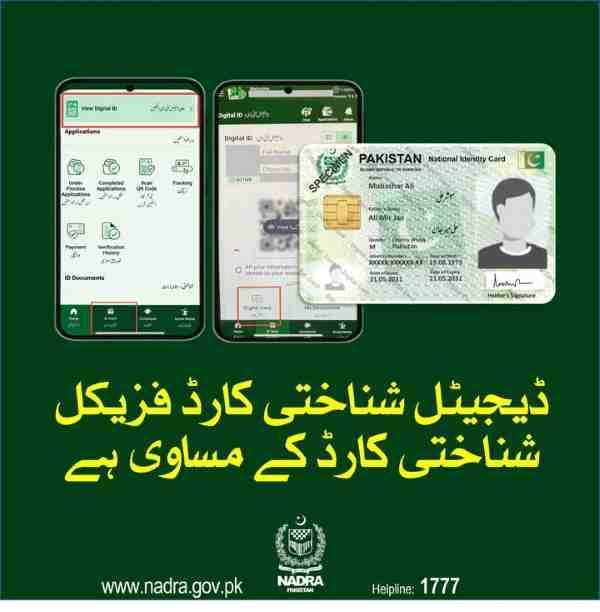
Table of Contents
Understanding NADRA Digital ID: The Foundation of Pakistan’s Digital Identity Ecosystem
NADRA’s Digital ID is not merely a photograph of your CNIC stored on a phone. It is a cryptographically secured digital credential that mirrors every data element of your physical identity card while adding layers of security and convenience unavailable in the physical format.
What constitutes the Digital ID:
- Issued exclusively through the Pak Identity Mobile Application
- Contains a dynamic QR code that updates with each verification request
- Protected by mandatory biometric authentication before access
- Backed by the National Data Exchange Layer (NDEL) for secure data sharing
Core components of the Digital ID system:
The Digital ID sits within a broader infrastructure NADRA has built over several years. The Pak Identity App serves as the user-facing portal, while NDEL operates behind the scenes as the secure data exchange layer connecting government agencies, banks, and service providers.
Why the Digital ID matters for everyday citizens:
- Eliminates the need to carry multiple physical documents
- Reduces identity fraud through biometric confirmation
- Speeds up service delivery at banks, airports, and government counters
- Provides a foundation for accessing future digital government services with a single login
The shift from physical to digital identification:
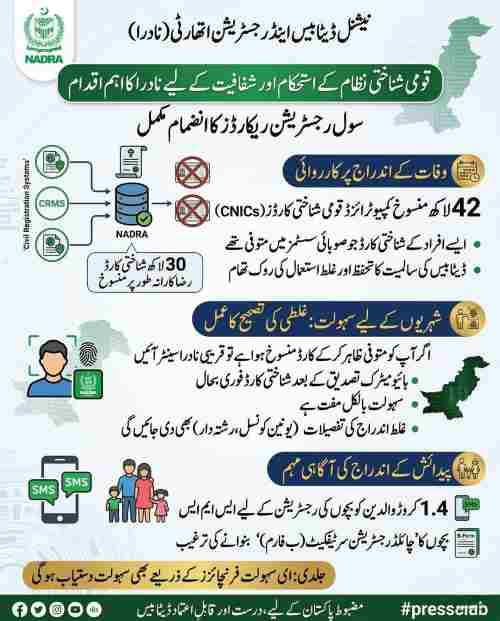
Traditional CNICs face limitations—they can be lost, stolen, forged, or damaged. Photocopies circulate without consent. The Digital ID addresses these vulnerabilities by putting control back in the hands of the citizen. Every time a third party requests verification, the system logs the interaction, creating an audit trail unavailable with physical cards.
Essential Requirements Before Starting Your Digital ID Application

Initiating the Digital ID process requires preparation. Missing any prerequisite leads to registration failure or delays.
What are the requirements to apply for a Digital ID in Pakistan?
| Requirement Category | Specific Details |
|---|---|
| Valid ID Document | Active CNIC for residents or NICOP for Overseas Pakistanis |
| Smartphone | Android 8.0+ with fingerprint sensor; iPhone 6s+ with iOS 13+ |
| Internet Connection | Stable 4G or Wi-Fi throughout registration |
| Mobile SIM | Registered in applicant’s name with NADRA records |
| Email Address | Active email for account recovery and official notifications |
What mobile devices are compatible with the Pak Identity biometric scan?
Device compatibility determines success or failure of the biometric verification step.
Android device requirements:
- Operating system version 8.0 (Oreo) or newer
- Working fingerprint sensor (dedicated or in-display)
- Front-facing camera capable of 720p video capture
- Minimum 2GB RAM for smooth app operation
iOS device requirements:
- iPhone 6s or any newer model
- iOS 13 or later installed
- Touch ID or Face ID functionality
- Stable camera for liveness detection
What documents are needed to apply for a Digital ID online?
Gather these items before opening the app:
- Physical CNIC or NICOP card (needed to scan the QR code on the back)
- Mobile phone with the registered SIM inserted and active
- Email account credentials for verification link access
Why SIM registration matters:
NADRA sends all OTP codes to the mobile number associated with your CNIC record. If your SIM is registered under another person’s name, the OTP either never arrives or routes to the wrong device. Visit your mobile operator’s service center to transfer SIM ownership before starting the Digital ID application.
Complete Registration Walkthrough: Pak Identity App Setup
This section provides a detailed, step-by-step guide to successfully registering and obtaining your Digital ID.
How do I download the Pak Identity app for Digital ID?
Downloading the correct app is the first critical step. Several unofficial apps exist; using the wrong one compromises security.
For Android device owners:
- Open Google Play Store on your smartphone
- Type “Pak Identity NADRA” in the search field
- Identify the official app by checking the developer name: “National Database and Registration Authority”
- Verify the app has over one million downloads and positive ratings
- Tap “Install” and wait for completion
For iPhone users:
- Launch the Apple App Store
- Search for “Pak Identity”
- Confirm the developer is “National Database and Registration Authority”
- Look for the NADRA logo as the app icon
- Tap “Get” and authenticate with Face ID or Apple password
Is the Pak Identity app available for both Android and iOS?
NADRA maintains official versions for both platforms. Updates release simultaneously across both operating systems to ensure consistent security features and functionality.
How do I create a new account on the Pak Identity mobile app?
Account creation requires precision. Any mismatch with NADRA records causes rejection.
Account creation steps:
- Tap “Register New Account” on the welcome screen
- Enter CNIC or NICOP number without dashes (13 digits total)
- Input your mobile number exactly as registered with NADRA
- Provide a valid email address you can access
- Create a password meeting security requirements (minimum 8 characters with uppercase, lowercase, number, and symbol)
- Tap “Proceed” to trigger OTP delivery
OTP verification process:
- A 6-digit code arrives via SMS within 30 seconds
- Enter the code in the app screen
- If no code arrives, check network signal strength
- Use the “Resend Code” option after 60 seconds
- Maximum three resend attempts before temporary lockout
Why OTP delivery sometimes fails:
The most common failure reason is SIM ownership mismatch. The telecom network confirms the SIM owner against NADRA records. If names differ, OTP transmission blocks automatically. Another cause is Do Not Disturb (DND) activation, which filters automated messages.
How do I verify my biometric fingerprints using a smartphone?
Biometric verification links your physical presence to the digital identity. This step cannot be bypassed.
Fingerprint capture procedure:
- The app prompts you to place a finger on the sensor
- Use the finger with the most distinct print pattern (thumb often works best)
- Hold steady without sliding or rotating
- Wait for the app to indicate successful capture
- Repeat for up to four different fingers as requested
Facial liveness detection:
- Position your face within the on-screen oval guide
- Ensure the room has adequate lighting (avoid backlight)
- Remove sunglasses, masks, or heavy hats
- Follow on-screen commands (blink, turn head slightly)
- The system records a short video, not just a photo
What to do if capture fails repeatedly:
- Clean the fingerprint sensor with a microfiber cloth
- Moisten fingertips slightly if skin is dry
- Try a different finger with a clearer print
- Move to a better-lit area for face capture
- Restart the phone and try again
Maximum attempt limits:
The system allows up to 10 capture attempts. After 10 failures, the application temporarily locks for 24 hours. Persistent failures may indicate a device compatibility issue or the need for biometric update at a NADRA center.
How do I upload my photograph for the Digital ID application?
The app uses your existing NADRA photograph by default but may request a fresh capture for verification.
Photo capture guidelines when prompted:
- Stand against a plain white or light-colored wall
- Face the camera directly with neutral expression
- Keep eyes open and looking straight ahead
- No glasses, head coverings (except religious), or accessories obscuring facial features
- Ensure the entire face is visible and well-lit
Manual photo upload option:
The app allows selecting an existing photo from the gallery only for specific document additions, not for the primary Digital ID photo.
How do I scan the QR code to digitize my physical CNIC?
The QR code on your physical CNIC automates data entry and confirms authenticity.
Locating the QR code:
- Turn your CNIC card to the reverse side
- Look for a square black-and-white pattern printed on newer cards
- Older CNICs without QR codes require manual data entry
Scanning process:
- Select “Scan QR Code” within the app
- Hold the phone camera steady over the code
- Ensure the entire QR code fits within the scanning frame
- Wait for the app to auto-populate name, father’s name, and date of birth
What is the “PakID Vault” and how do I use it?
The PakID Vault functions as an encrypted digital safe within the app, storing your Digital ID and other verified documents.
Documents you can add to the vault:
- Digital ID card (automatically added after verification)
- Driver’s license (both Pakistani and international)
- Vehicle registration book
- Arms license
- Educational certificates and degrees
- Professional licenses (medical, engineering, legal)
- Passport
Adding documents to the vault:
- Open the app and navigate to the Vault section
- Tap “Add New Document”
- Select the document type from the dropdown menu
- Choose capture method (camera or upload)
- Take a clear photo showing all four corners and text
- Confirm and save
Vault security features:
- Biometric authentication required for every vault access attempt
- Documents encrypted using AES-256 encryption
- No cloud backup unless manually enabled with consent
- Sharing documents generates temporary access links that expire
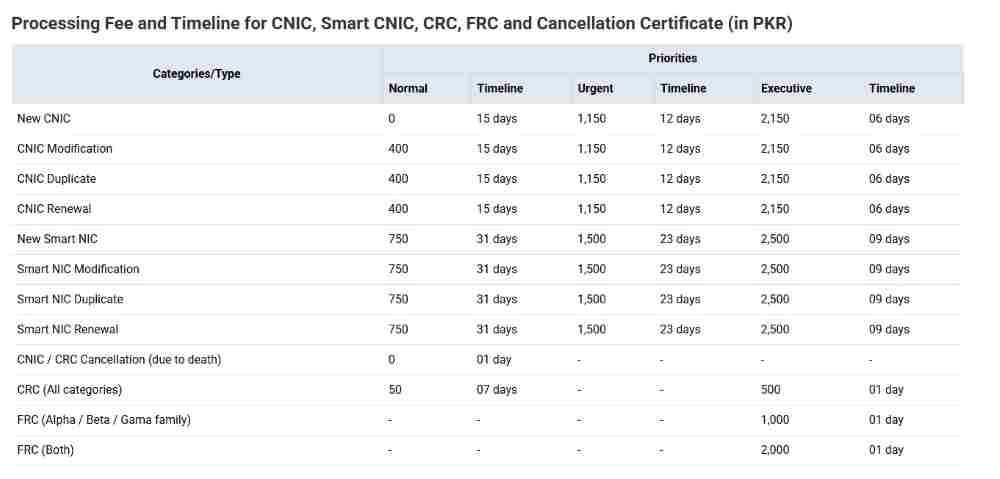
How do I pay the processing fees within the app?
Is there a fee for activating the Digital ID on the app?
The initial Digital ID download carries no fee. Charges apply only for specific NADRA services.
Services requiring payment:
- Family Registration Certificate (FRC) issuance
- CNIC renewal or modification
- Address change requests
- Duplicate CNIC for lost cards
- Executive services (priority processing)
Integrated payment methods:
- JazzCash (mobile account)
- EasyPaisa (mobile account)
- Visa and Mastercard credit/debit cards
- Bank transfers through 1Link payment gateway
Payment process:
Select the service, review the fee amount displayed, choose payment method, complete authentication (biometric for mobile wallets), and receive confirmation instantly.
How to Download Your Digital ID Card
After successful registration and verification, the Digital ID becomes available for download.
Final download steps:
- Log into the Pak Identity App
- Tap “Digital ID” on the home dashboard
- Review all displayed information for accuracy
- Tap “Save to Vault”
- The Digital ID appears in your vault and remains accessible offline
What the Digital ID displays:
- Full name
- Father’s/husband’s name
- CNIC/NICOP number
- Date of birth
- Current photograph
- Dynamic QR code
- Digital signature verifying authenticity
Managing Your Digital Identity: Services Available Through the App
The Pak Identity App serves as a gateway to multiple NADRA services beyond the Digital ID itself.
Can I apply for a fresh CNIC through the Pak Identity app?
First-time CNIC applications for adults require physical presence at a NADRA center. The app handles modifications and renewals but not initial issuance.
Services available through the app:
- CNIC renewal for expired cards
- Duplicate CNIC for lost or damaged cards
- Modification of address
- Modification of marital status
- Family Registration Certificate applications
- Birth certificate linkages for children
Can I renew my expired CNIC using the Pak Identity app?
Expired CNICs can be renewed entirely through the app without visiting a NADRA center.
Renewal process steps:
- Navigate to “Services” section
- Select “CNIC Renewal”
- Confirm your current details
- Choose delivery preference (home courier or pick-up from center)
- Complete biometric verification
- Pay the renewal fee through integrated payment
- Track application status under “My Requests”
Processing timeline:
- Standard processing: 7-10 working days
- Executive processing (additional fee): 2-3 working days
- Delivery time adds 2-3 working days for courier
Can I update my home address through the Pak Identity app?
Address modifications require proof of residence documentation uploaded through the app.
Acceptable proof documents:
- Utility bill (electricity, gas, water) issued within last three months
- Property tax receipt
- Rent agreement with attested copy of owner’s CNIC
- Bank statement with current address
Address update process:
- Go to “Modify CNIC Information”
- Select “Address Change”
- Enter the new address exactly as it should appear on the card
- Upload clear photos of supporting documents
- Pay applicable fee
- Submit for NADRA verification
Verification requirement:
NADRA may conduct a physical verification visit to the new address for certain cases, especially if the address differs significantly from previous records.
Can I apply for a FRC (Family Registration Certificate) via the app?
FRC applications are fully supported and represent one of the most frequently used services.
FRC application process:
- Tap “Services” then “Family Registration Certificate”
- Select family members to include (spouse, children, parents)
- Verify each member’s CNIC number
- Choose certificate type: basic (summary) or comprehensive (detailed)
- Review the family tree displayed for accuracy
- Pay the FRC fee
- Download PDF certificate when processing completes
FRC delivery:
- Digital PDF delivered within 2-3 working days
- Physical copy can be requested for an additional courier fee
How do I modify my mobile number on the Pak Identity portal?
Changing the registered mobile number requires additional verification steps to prevent unauthorized changes.
Mobile number update process:
- Access “Profile” then “Mobile Number”
- Enter the new mobile number
- Confirm the new SIM is registered in your name
- Complete a fresh biometric fingerprint scan
- Receive OTP on the new number for final confirmation
Important note:
The new number must be registered with the telecom operator in your name before attempting this update. NADRA cross-verifies with telecom records.
Solving Pak Identity App Issues: Comprehensive Troubleshooting
Technical issues affect some users. These solutions address the most common problems.
What should I do if the Pak Identity app fails to capture my fingerprints?
Fingerprint capture failures typically stem from hardware or skin condition issues.
Immediate solutions to try:
- Wipe the fingerprint sensor with a clean, dry cloth
- Clean your fingertips thoroughly (remove oils, dirt)
- Apply light moisture if fingertips are very dry
- Try the thumb of your dominant hand (often most reliable)
- Use a different finger if one consistently fails
- Remove any screen protector covering the sensor area
Environmental factors:
Cold temperatures reduce blood circulation to fingertips, making prints harder to read. Warm your hands before attempting capture. Very dry skin also causes failures; applying hand lotion 15 minutes before can improve results.
When to visit a NADRA center:
After 10 unsuccessful attempts, the system locks temporarily. If you consistently cannot capture prints, your biometric record may need updating at a NADRA registration center. The center updates your fingerprint data, after which the app should work normally.
Why am I not receiving the OTP (One-Time Password) during registration?
OTP delivery issues prevent account creation and affect password recovery.
Primary causes and solutions:
| Cause | Solution |
|---|---|
| SIM not registered in your name | Visit mobile operator to transfer SIM ownership |
| DND (Do Not Disturb) active | Send “STOP” to 8686 to disable, then retry |
| Network congestion | Wait 15 minutes and request new OTP |
| Incorrect number entered | Verify the number matches NADRA records |
| SIM not inserted or inactive | Insert SIM, ensure active balance, restart phone |
Alternative verification methods:
If SMS OTP consistently fails, the app offers voice OTP as a fallback. The system calls your registered number and reads the code automatically. This bypasses SMS delivery issues.
What should I do if my Pak Identity account is blocked?
Account blocks occur after multiple failed login attempts or suspicious activity detection.
Account recovery steps:
- Open the app and tap “Account Locked”
- Select “Forgot Password” option
- Enter CNIC number and registered email
- Follow password reset link sent to email
- Set new password
- Log in with new credentials
If automated recovery fails:
Contact NADRA helpline at 051-111-786-100 with your CNIC number. Be prepared to answer security questions about your identity. The helpline can unlock accounts that automated systems cannot.
How do I recover my Pak Identity app password?
Password recovery is self-service and takes minutes.
Password reset steps:
- On the login screen, tap “Forgot Password?”
- Enter your 13-digit CNIC/NICOP number
- Enter the email address used during registration
- Check email for password reset link (allow 2-3 minutes)
- Click the link and create a new password
- Return to app and log in with new password
Password requirements for new password:
- Minimum 8 characters
- At least one uppercase letter
- At least one lowercase letter
- At least one number
- At least one special character (!@#$%^&*)
What should I do if the Pak Identity app keeps crashing?
App crashes often relate to device memory, outdated software, or corrupted app installation.
Troubleshooting sequence:
- Force close the app and reopen
- Clear app cache (Android: Settings → Apps → Pak Identity → Clear Cache)
- Restart your phone
- Check for app updates in Play Store/App Store
- Ensure phone OS is updated to latest version
- Free up storage space (minimum 1GB free recommended)
- Uninstall and reinstall the app
If crashes persist:
Report the issue through the app’s help section or email support@nadra.gov.pk with your device model, OS version, and a description of when crashes occur.
Who should I contact if the Pak Identity app keeps crashing or has other issues?
Multiple support channels exist for different issue types.
Support channels:
- Helpline: 051-111-786-100 (24/7 for technical issues)
- Email: support@nadra.gov.pk (response within 48 hours)
- Physical centers: Visit nearest NADRA registration center for biometric-related issues
- Social media: NADRA official Twitter and Facebook accounts for announcements
What information to provide when seeking support:
- Your CNIC number
- Device make and model
- App version (visible in app settings)
- Description of the issue and when it occurs
- Screenshots if applicable
Security, Legal Validity, and Privacy Protections
Understanding the legal framework and security architecture builds confidence in using the Digital ID.
Is the Digital ID on the app legally valid for bank account opening?
NADRA has issued clear directives to all financial institutions mandating acceptance of the Digital ID.
Legal basis for acceptance:
Under NADRA Ordinance and subsequent regulations, the Digital ID carries the same evidentiary weight as the physical CNIC. The State Bank of Pakistan has communicated this to all banks, requiring them to update their KYC procedures accordingly.
How banks verify the Digital ID:
- Bank staff scan the QR code using authorized verification devices
- The system returns real-time validation including photo for visual confirmation
- The verification creates a time-stamped audit record
- No physical photocopy is retained, improving privacy
What to do if a bank refuses Digital ID:
NADRA provides a complaint mechanism for institutions refusing acceptance. File a complaint through the Pak Identity App help section or call the helpline. NADRA follows up with the institution to enforce compliance.
Is the Pak Identity app secure for sensitive personal data?
Multiple security layers protect user data from unauthorized access.
Security architecture components:
- Encryption: All data transmitted between app and NADRA servers uses TLS 1.3 encryption. Data stored on the device in the vault uses AES-256 encryption.
- Biometric authentication: Access to the app, vault, and sensitive functions requires fingerprint or face verification.
- Secure element storage: Cryptographic keys store in the device’s secure element (Trusted Execution Environment) where available.
- No data persistence: Third-party verification requests do not result in stored data on the verifier’s device.
Privacy controls:
The app includes granular consent settings. When a third party requests to verify your Digital ID, you receive a notification and must explicitly approve the request. The system logs all verification attempts, giving you an audit trail of who accessed your identity data.
Does the Digital ID work without an internet connection?
Connectivity requirements differ between viewing and verifying the Digital ID.
Offline capabilities:
- Viewing your Digital ID within the app: No internet required
- Accessing the PakID Vault: No internet required
- Adding new documents to vault: No internet required
Online requirements:
- QR code verification by third parties: Internet required (the verifying device must check with NADRA servers)
- Submitting applications (FRC, renewal): Internet required
- Downloading new documents: Internet required
Is a physical CNIC still required if I have the Digital ID?
The legal answer differs from practical reality during the transition period.
Official position:
NADRA has declared the Digital ID legally equivalent to the physical CNIC. No regulation requires carrying the physical card if you possess the Digital ID.
Current practical considerations:
- Banks and telecom companies: Digital ID accepted without physical card
- Domestic airports: Digital ID accepted at major airports (Karachi, Lahore, Islamabad, Peshawar)
- Government offices: Acceptance varies; some legacy systems may still request physical card
- Police checkpoints: Physical card still preferred as not all personnel have verification devices
- International travel: Physical passport and CNIC/NICOP required; Digital ID not accepted for border crossing
Recommended approach:
Keep your physical card stored safely at home or in a wallet as backup. Use the Digital ID for daily transactions where acceptance is established. Over time, physical card requirements will diminish as verification devices become widespread.
Overseas Pakistanis: Using Digital ID with NICOP
The Digital ID system extends full functionality to Pakistanis living abroad.
Can Overseas Pakistanis (NICOP holders) use the Pak Identity app?
NICOP holders have full access to the app and all its features from anywhere in the world.
Specific considerations for overseas users:
- The app works without VPN; direct connection to NADRA servers
- OTP delivery requires international SMS capability on your SIM
- Wi-Fi connectivity should be stable for biometric capture
- Time zone differences do not affect processing times
Services available to overseas Pakistanis:
- Digital ID download and management
- FRC applications
- NICOP renewal
- Address updates (Pakistani address)
- Document additions to vault
Benefits of Digital ID for overseas Pakistanis:
No need to visit Pakistani embassies or consulates for identity verification. All NADRA services become accessible from home. Bank account opening in Pakistan can be completed entirely remotely using the Digital ID.
What are the specific requirements for NICOP holders applying for Digital ID?
NICOP holders follow the same process as CNIC holders with minor variations.
Requirements:
- Valid NICOP card (must not be expired)
- Mobile number registered with NADRA against the NICOP (international numbers accepted)
- Compatible smartphone
- Stable internet connection
International OTP delivery:
Users outside Pakistan receive OTP via SMS to their international number if the number is correctly registered. Some international carriers may delay SMS delivery; using the voice OTP option provides faster results.
Future of Digital Identity in Pakistan: NDEL and Beyond
NADRA continues expanding the digital identity ecosystem beyond the current Digital ID.
National Data Exchange Layer (NDEL):
NDEL operates as the secure backbone connecting government agencies, financial institutions, and service providers. It enables consent-based data sharing where citizens control what information they share and with whom.
Upcoming features:
- Single Sign-On (SSO): One Digital ID login to access all government portals (passport, tax, vehicle registration, education)
- Verifiable Credentials: Cryptographic proof of document authenticity that third parties can verify without contacting NADRA directly
- Consent Dashboard: Complete visibility into who accessed your data and when
- Digital Signatures: Legally binding digital signatures for documents and contracts
Integration timeline:
Several government agencies are currently integrating with NDEL. The passport office, excise and taxation departments, and provincial education boards are among early adopters. Full integration across all federal and provincial services is targeted over the coming years.
Tracking and Monitoring Your Digital ID Applications
After submitting any application through the app, tracking its progress is straightforward.
How do I track the status of my Digital ID application?
Multiple tracking methods ensure you can monitor application progress.
In-app tracking:
- Navigate to “My Requests” section
- All submitted applications appear with current status
- Status indicators: Submitted, Under Processing, Completed, Dispatched, Delivered
SMS tracking:
Send your CNIC number to 8300 to receive status updates for any active application.
Web portal tracking:
The NADRA website includes a tracking page where entering your CNIC and application number displays current status.
How to check ID card by CNIC number online?
The Digital ID itself displays all details when opened. For third-party verification, the QR code scanning system returns real-time validation.
What third parties see when scanning:
- Name and CNIC number
- Current photograph for visual confirmation
- Validity status (active/expired)
- Digital signature verifying authenticity
Can I download my NADRA ID card copy as a PDF?
The Digital ID is not available as a standard PDF download due to security requirements.
Why PDF is not offered:
- PDF files can be easily edited or forged
- Digital ID requires secure storage and authentication
- The QR code must remain dynamic for real-time verification
Alternative for printing:
The app allows creating a temporary print view for specific purposes, but printed copies are not legally valid. They serve only as reference, not official identification.
Conclusion: Embracing Digital Identity
The Digital ID card Pakistan initiative represents a fundamental shift in how citizens interact with government services, financial institutions, and businesses. By placing identity verification on smartphones with biometric security, NADRA has created a system that is simultaneously more convenient and more secure than physical cards.
Key actions to take:
- Verify your SIM is registered in your name before starting
- Ensure your smartphone meets compatibility requirements
- Complete the registration process carefully
- Store your Digital ID in the PakID Vault
- Use it for banking, telecom, and government transactions
- Keep your physical card as backup during the transition
The road ahead:
As NDEL expands and more services integrate with the Digital ID system, the need for physical documents will continue decreasing. Digital identity will become the primary method of verification across Pakistan, enabling faster, more secure, and more convenient access to essential services.
Disclaimer
This guide provides general information based on NADRA publications and user experiences. Procedures, fees, and feature availability may change. Always refer to the official Pak Identity App and NADRA communications for the most current information.
Frequently Asked Questions (FAQs)
1. How do I download the Pak Identity app for Digital ID?
Search “Pak Identity” on Google Play Store for Android or Apple App Store for iOS. Verify the developer is “National Database and Registration Authority” and look for the official NADRA logo.
2. What are the requirements to apply for a Digital ID in Pakistan?
You need a valid CNIC or NICOP, a smartphone with fingerprint sensor and camera, a SIM registered in your name, stable internet, and an active email address.
3. Is the Pak Identity app available for both Android and iOS?
Yes, NADRA maintains official versions for both platforms with regular security updates and feature enhancements.
4. How do I verify my biometric fingerprints using a smartphone?
Place your finger firmly on the sensor when prompted, hold steady without movement, and follow the on-screen instructions for facial liveness detection. Clean the sensor if capture fails.
5. What should I do if the Pak Identity app fails to capture my fingerprints?
Clean the sensor, moisten dry fingertips, try a different finger, ensure adequate lighting for face capture, and restart the phone. After 10 failures, visit a NADRA center for biometric update.
6. How long does it take to process a Digital ID application online?
The Digital ID downloads instantly after successful verification. Renewals and modifications typically take 7-10 working days for standard processing.
7. Is the Digital ID on the app legally valid for bank account opening?
Yes, NADRA has mandated acceptance of the Digital ID for all financial transactions and KYC processes. Banks are required to accept it as valid identification.
8. Can Overseas Pakistanis (NICOP holders) use the Pak Identity app?
Yes, NICOP holders can access all app features from anywhere in the world without visiting Pakistani embassies or consulates.
9. How do I recover my Pak Identity app password?
Tap “Forgot Password” on the login screen, enter your CNIC and registered email, follow the password reset link sent to your email, and create a new password.
10. Is a physical CNIC still required if I have the Digital ID?
The Digital ID is legally equivalent, but some legacy systems may still request the physical card. Carry it as backup during the transition period.

Add a Comment