
From the moment you accelerate onto a highway to the instant a sprinter crosses the finish line, the trio of speed, distance, and time governs every moving object in our universe. These three quantities are so deeply interconnected that knowing just two instantly reveals the third. Yet, despite the simplicity of the formulas, mistakes happen constantly — wrong units, forgotten conversions, or mixing hours with seconds. That’s why a dedicated Speed Distance Time Calculator with built‑in unit conversion is not a luxury; it’s an essential tool for accuracy and efficiency.
⚡ SPEED · DISTANCE · TIME
Smart converter + infographic calculator
Speed
Distance
Time
In this detailed guide, I’ll explain everything you need to know about calculating speed, distance, and time. You’ll learn the mathematical foundations, explore dozens of real‑life scenarios, discover how unit conversion works behind the scenes, and understand how to use an infographic calculator to avoid errors. Whether you are a student preparing for an exam, a professional driver tracking delivery windows, or a curious traveler, this post will transform how you think about motion.
- Read More: Minutes To Hours Converter | Minutes To Hours To Days
- Read More: Square Footage Calculator | Ft To Sq Ft Calculator
- Read More: Height Converter ft To cm And cm To Inch
- Read More: Feet And Inches Calculator | Foot And Inch
Speed Distance Time Calculator | Speed Calculator
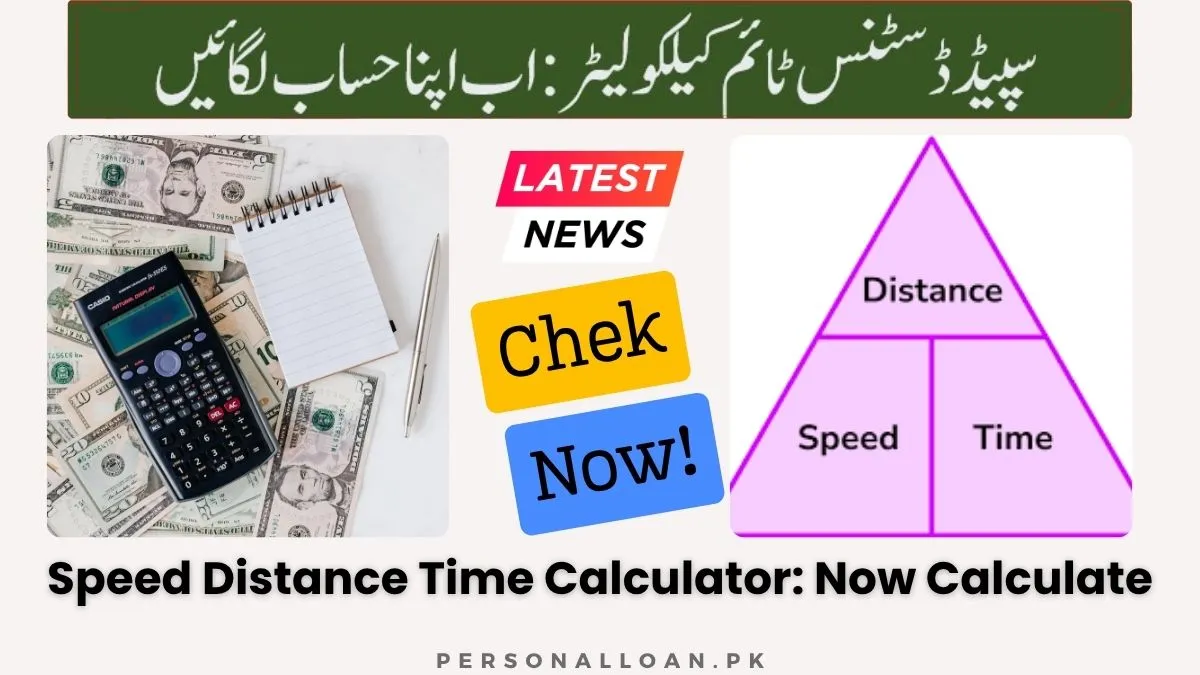
Table of Contents
The Fundamental Relationship: More Than Just a Formula
Let’s start with the basics. The relationship between speed (v), distance (d), and time (t) is linear and deterministic. The three equivalent forms are:
- v = d / t (speed equals distance divided by time)
- d = v × t (distance equals speed multiplied by time)
- t = d / v (time equals distance divided by speed)
These equations work for any consistent set of units. Consistency is the key word. If you measure distance in kilometers and time in hours, speed comes out in kilometers per hour. If you use meters and seconds, speed is in meters per second. But if you mix kilometers with seconds, the result will be in kilometers per second — a unit that is rarely useful and often misinterpreted.
The brilliance of a modern calculator is that it handles the consistency for you. You can freely enter 150 miles, 2.5 hours, and ask for speed in knots, and the tool will perform all necessary conversions internally. This frees your brain to focus on the problem, not the arithmetic.
Why Unit Conversion Is the Hidden Challenge
Most people know the speed formula. The real difficulty lies in converting between different measurement systems. Here are the most common conversion scenarios you’ll encounter.
Distance conversions
- 1 kilometer = 0.621371 miles
- 1 mile = 1.60934 kilometers
- 1 meter = 3.28084 feet
- 1 nautical mile = 1.15078 miles = 1.852 kilometers
Time conversions
- 1 hour = 60 minutes = 3600 seconds
- 1 minute = 60 seconds
Speed conversions
- 1 km/h = 0.621371 mph
- 1 mph = 1.60934 km/h
- 1 m/s = 3.6 km/h = 2.23694 mph
- 1 knot = 1.15078 mph = 1.852 km/h
When you perform calculations by hand, you must convert everything to a common base before applying the formula. For example, to find speed in km/h when distance is 500 meters and time is 2 minutes, you would convert 500 m → 0.5 km, 2 min → 1/30 hour, then compute 0.5 ÷ (1/30) = 15 km/h. A calculator does all of this instantly, and you never see the intermediate steps.
Inside the Infographic Speed Distance Time Calculator
The tool we’ve built is not a boring spreadsheet. It’s a visual, interactive dashboard that respects how humans learn and work. Let me walk you through its core components.
Three Dedicated Panels for Three Variables
Each variable gets its own card with a unique color theme and icon:
- Speed panel (orange with a lightning bolt) – supports km/h, m/s, mph, and knots.
- Distance panel (blue with a ruler) – supports kilometers, meters, miles, and nautical miles.
- Time panel (green with a clock) – supports hours, minutes, and seconds.
Every panel contains a numeric input field and a dropdown unit selector. You can change any unit at any time, and the calculator instantly updates all values while preserving the mathematical relationship.
Intelligent Mode Selection
A row of three large buttons lets you choose what you want to calculate:
- Calculate Speed – uses the distance and time values as sources. The speed field becomes read‑only and displays the result.
- Calculate Distance – uses speed and time as sources. The distance field becomes read‑only.
- Calculate Time – uses distance and speed as sources. The time field becomes read‑only.
This design eliminates confusion. You never have to wonder which field is being computed. The badges under each card change to “TARGET (calculated)” or “SOURCE field” accordingly, giving you clear visual feedback.
Live Updates Without a Submit Button
Every keystroke, every unit change triggers a new calculation. There is no “calculate” button to press. This immediate feedback loop encourages experimentation: change the distance from kilometers to miles, watch the speed update; change time from hours to minutes, see the result adjust. You develop an intuition for how these quantities relate.
Built‑in Error Prevention
The calculator actively protects you from impossible operations. If you try to calculate speed with time set to zero, a prominent error message appears: “Time cannot be zero when calculating speed.” Similarly, dividing by zero when calculating time with zero speed triggers a warning. Negative values are ignored because they don’t exist in physical motion (you cannot have negative distance or negative time). All error messages disappear automatically once you correct the input.
One‑Click Reset
A reset button restores sensible default values: 100 km distance, 2 hours time, and 50 km/h speed (depending on the current mode). This is perfect when you’ve been experimenting and want to start over.
Real‑World Applications Across Different Fields
This calculator is not just for homework. Let’s explore practical scenarios where it saves time and prevents errors.
Automotive and Road Travel
Imagine you’re planning a road trip from Los Angeles to San Francisco, a distance of roughly 380 miles. You expect to drive at an average speed of 65 mph, including short breaks. How long will the drive take?
- Set mode to Calculate Time.
- Enter distance = 380 miles.
- Enter speed = 65 mph.
- The result is about 5.85 hours, which is 5 hours and 51 minutes.
Now you can plan your departure and arrival precisely. If you want to convert that time into minutes only, simply change the time unit to minutes — the calculator shows 351 minutes.
Running and Athletic Training
A marathon runner completes 42.195 kilometers in 3 hours and 30 minutes. What is their average pace in minutes per kilometer?
First, convert the total time to minutes: 3.5 hours × 60 = 210 minutes. Then set mode to Calculate Speed to get speed in km/h: 42.195 km / 3.5 h = 12.056 km/h. But pace is the inverse: minutes per km = 210 minutes / 42.195 km = 4.98 min/km (about 5 min/km). Our calculator gives speed, and you can mentally invert, or you can set time in minutes and distance in km, then manually divide time by distance. A future enhancement could include a dedicated pace mode, but even now, the tool helps you verify your numbers.
Marine Navigation
A sailing yacht needs to cover 120 nautical miles to reach the next harbor. The boat’s cruising speed is 8 knots. How many hours will the passage take?
- Mode: Calculate Time.
- Distance: 120 nautical miles.
- Speed: 8 knots.
- Result: 15 hours exactly (since 120 ÷ 8 = 15). If the sailors want to know the arrival time, they add 15 hours to their departure time.
Now suppose the wind drops, and speed reduces to 6 knots. Change the speed value to 6, and the time instantly updates to 20 hours. This allows quick what‑if analysis for skippers.
Aviation Flight Planning
A light aircraft flies 450 nautical miles at a ground speed of 150 knots. What is the flight time in minutes?
- Mode: Calculate Time.
- Distance: 450 nm.
- Speed: 150 knots.
- Time shows 3 hours. Change time unit to minutes → 180 minutes. If the plane has a fuel endurance of 4 hours, this flight is well within limits.
Physics and Engineering Education
Students often struggle with unit consistency. A typical textbook problem: “A car travels 500 meters in 20 seconds. What is its speed in km/h?” Using the calculator:
- Mode: Calculate Speed.
- Distance: 500 meters.
- Time: 20 seconds.
- Speed defaults to m/s → 25 m/s. Now change the speed unit to km/h → 90 km/h. The student sees the conversion factor (multiply by 3.6) in action.
Step‑by‑Step Problem Solving Strategies
Knowing the formula is one thing; applying it correctly under time pressure is another. Here’s a systematic approach you can use with any SDT calculator.
Step 1: Identify the unknown. Are you trying to find speed, distance, or time? This determines which mode to select.
Step 2: Gather the two known quantities. Write them down with their units. For example: distance = 250 km, time = 2 hours 30 minutes.
Step 3: Convert time to a single unit if necessary. 2 hours 30 minutes = 2.5 hours. The calculator does this automatically when you enter 2.5 hours or 150 minutes, but understanding the conversion helps you verify.
Step 4: Enter the known values into the appropriate fields, selecting the correct units from the dropdowns.
Step 5: Read the result in the target field. Change the target’s unit if you need a different format.
Step 6: Sanity check. Does the result make sense? If you calculated a speed of 1000 km/h for a city bus, something is wrong.
Common Pitfalls and How to Avoid Them
Even experienced users make mistakes. Here are the most frequent errors and how to sidestep them.
Pitfall 1: Forgetting to convert time units when calculating manually.
If you have time in minutes but use the formula with speed in km/h, you’ll get a wrong answer. The calculator prevents this by normalizing everything to seconds internally. But if you’re doing mental math, always convert time to hours or seconds to match the speed unit.
Pitfall 2: Mixing nautical miles with statute miles.
A nautical mile is about 1.15 statute miles. If you treat them as equal, navigation errors can be huge. Our calculator keeps them separate with distinct unit options.
Pitfall 3: Assuming that average speed equals the arithmetic mean of different speeds.
If you drive half the distance at 60 km/h and half at 120 km/h, the average speed is not 90 km/h. It’s actually 80 km/h because you spend more time at the slower speed. The correct calculation uses total distance divided by total time. Our calculator can handle this if you input total distance and total time directly.
Pitfall 4: Entering time as hours:minutes without converting.
The calculator expects a decimal number (e.g., 2.5 for 2 hours 30 minutes) unless you use the minutes unit. Always either convert to decimal hours or switch the time unit to minutes.
Read More: Celsius To Fahrenheit | °C To °F Converter
The Hidden Power of Live Unit Switching
One of the most underrated features of a modern SDT calculator is the ability to change a unit after the calculation. Suppose you’ve computed a speed of 30 m/s. You can then switch the speed unit to km/h and see 108 km/h without re‑entering any numbers. This is invaluable when you need to present results to different audiences: scientists prefer m/s, drivers prefer km/h or mph, sailors use knots.
Similarly, you might compute a distance of 5000 meters. Switch to kilometers → 5 km. Switch to miles → about 3.11 miles. All from the same underlying value.
Teaching the SDT Concept with Visual Tools
If you’re an educator, you can use this calculator as a live demonstration tool. Project it on a screen, set the mode to calculate speed, then ask students: “If I change distance from 100 km to 200 km while keeping time the same, what happens to speed?” They predict, you change the value, and the speed doubles instantly. This immediate visual feedback is far more powerful than static textbook diagrams.
You can also use the reset button to return to a known baseline and then run “what if” experiments. For example, show how halving the time doubles the speed for a fixed distance. The calculator becomes an interactive physics laboratory.
Beyond the Basics: Advanced Scenarios
While the three formulas cover 99% of everyday needs, there are advanced extensions worth mentioning.
Average speed with multiple legs – To find average speed over several segments, calculate total distance and total time separately, then divide. Our calculator can compute the final result if you manually sum the distances and times.
Relative speed – When two objects move toward each other, their relative speed is the sum. When moving in the same direction, relative speed is the difference. You can use the calculator to find closing times or separation distances.
Acceleration – Speed, distance, and time assume constant velocity. If acceleration is involved, you need kinematic equations (v = u + at, etc.). However, many real‑world approximations treat speed as constant over short intervals.
Why You Should Always Use a Unit‑Aware Calculator
Hand calculation is a valuable skill, but it’s slow and error‑prone, especially under time pressure or when dealing with uncommon units like knots or nautical miles. A dedicated Speed Distance Time Calculator eliminates transcription errors, unit mismatch mistakes, and arithmetic blunders. It also serves as a learning aid: by seeing how changing units affects the displayed result, you internalize conversion factors without memorizing them.
Moreover, the infographic design reduces cognitive load. You don’t have to remember which variable is which; the color coding and icons guide your eyes. The mode selector prevents you from accidentally editing the wrong field. These small design choices add up to a tool that feels intuitive from the first use.
Final Thoughts: Mastering Motion One Calculation at a Time
Speed, distance, and time are among the most practical mathematical relationships in daily life. From estimating arrival times to setting training paces to planning fuel stops, you use them more often than you realize. A smart calculator that respects units and provides live feedback turns a potential headache into a quick, reliable operation.
I encourage you to open the calculator now and try a few scenarios from your own experience. How long does it take you to walk to the nearest grocery store? What’s your average speed on a favorite cycling route? How many hours would it take to drive to a relative’s house 300 miles away at highway speeds? The more you play with the numbers, the more natural the relationship becomes.
By combining the timeless SDT formulas with modern unit conversion and a clean infographic interface, you have everything you need to solve motion problems instantly, accurately, and even enjoyably. No more pencil‑and‑paper unit conversions. No more silly mistakes. Just clear answers at your fingertips.
So go ahead — pick a mode, enter two numbers, and watch the third appear. That’s the power of the Speed Distance Time Calculator. Safe travels, precise calculations, and a deeper understanding of the moving world around you.

Add a Comment